AI assistant in Drafta: ⌘J and your key
Translated automatically from Russian. Read the original →
AI in Drafta lives where the text does: in the editor, at the cursor. I didn’t make a separate chat where you have to copy chunks of a note. Press ⌘J — the popover opens right in the line, the result appears in the text, and you decide whether to keep it or not. I already mentioned the ⌘J shortcut in article Drafta с клавиатуры: сочетания, сниппеты, автозамены.
Your key, your provider
The assistant works with whichever provider you have an API key for:
| Provider | Model |
|---|---|
| Anthropic | claude-haiku-4-5 |
| OpenAI | gpt-4o-mini |
| DeepSeek | deepseek-chat |
Keys are entered in the AI section of the settings and stored in the macOS keychain. The active provider is switched with one click, and saved keys are not lost. Requests go through your key, so token usage is paid for with the selected provider.
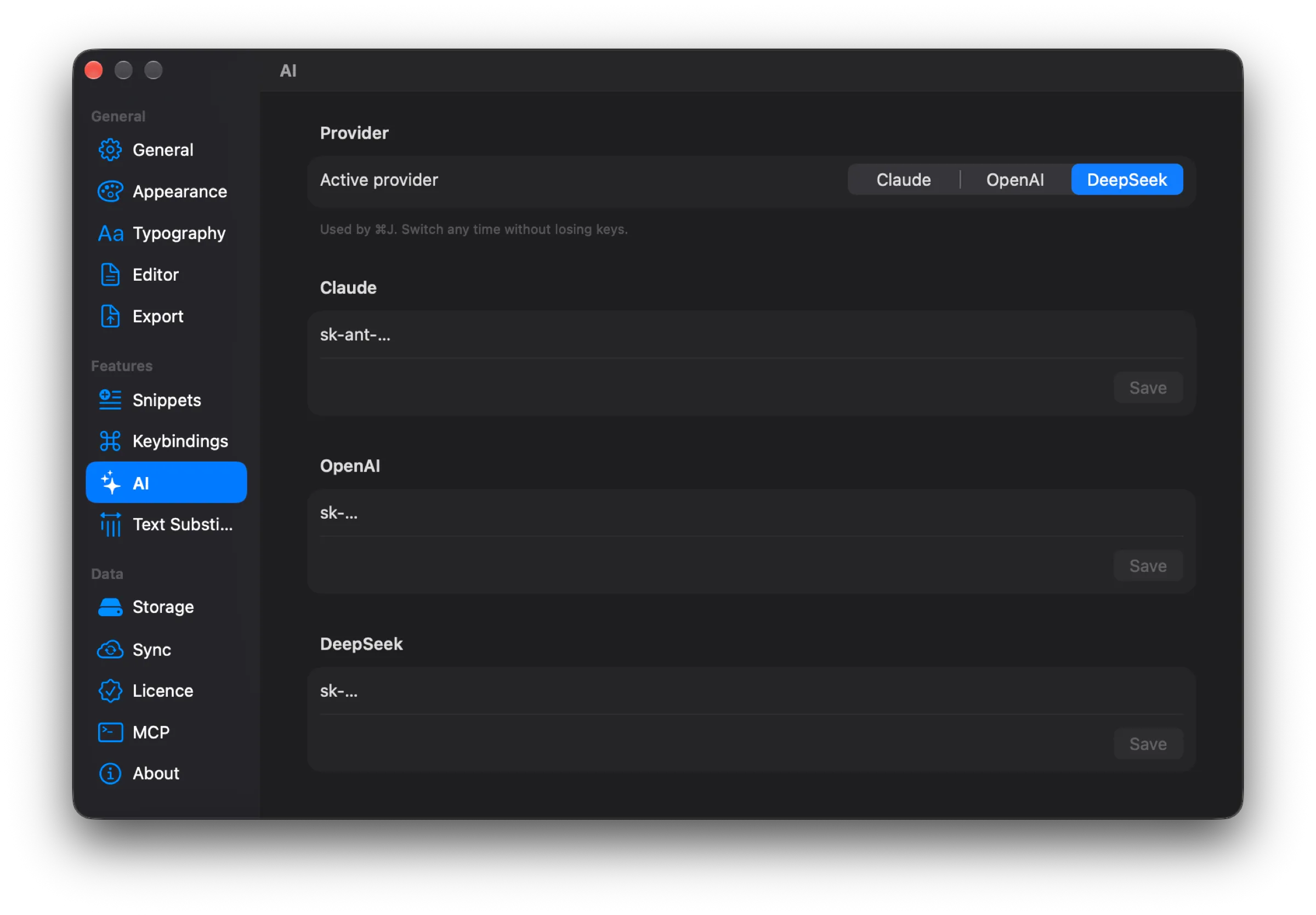
AI section: active provider — DeepSeek, each provider has its own key field.
If there is no key for the active provider, ⌘J opens these settings instead of the popover.
Two modes: edit and insert
The popover understands what you want to do based on the selection:
- there is a selection — Edit selection mode: the assistant rewrites the selected text;
- there is no selection — Insert at cursor mode: the assistant writes new text at the cursor position.
Along with the request, the text around the cursor and the note title are sent to the provider. This way the assistant continues the thought in the same style, rather than from a blank slate.
Seven ready-made commands
The popover has ready-made commands:
| Command | What it does | Needs a selection |
|---|---|---|
| Improve writing | improves style and grammar | yes |
| Make shorter | shortens while keeping the main point | yes |
| Make longer | expands with details and examples | yes |
| Fix grammar | fixes only grammar and spelling | yes |
| Summarize | summarizes in 1–3 bullet points | no |
| Continue writing | continues the text from the cursor | no |
| Generate diagram | draws a Mermaid diagram from a description | no |
Commands that need a selection are unavailable in insert mode. If none of the commands fits, write your own instruction right in the popover field: “Tell AI what to change…” when editing or “What to insert here…” when inserting.
Text commands ask the model to preserve the language and Markdown of the source text. A Russian note stays Russian, lists stay lists.
Accept or regenerate
The response appears right in the text as it is generated. In edit mode, the old fragment is dimmed so you can see what is changing. When the response is ready, all that’s left is to choose:
If the provider cut off the response with its limit, the popover warns about it. A truncated response cannot be accepted in place of a selection — it would replace the text with a shorter one.
Generate diagram
This command closes the gap between text and diagram. You describe in one phrase what needs to be drawn — the assistant returns only a mermaid block, without explanations around it, and the preview immediately renders the diagram. After that, the diagram can be edited by hand like regular text.
⌘J can be reassigned
The assistant command lives in the same registry as formatting. In the Keybindings section of the settings, you can assign it a different shortcut. The assistant can also be opened from the AI → Ask AI… menu.
The assistant inside and the assistant outside
The ⌘J assistant works with the single note that is currently open. If you need an AI that sees the entire library — searches, reads, creates, and appends to notes — Drafta has a built-in MCP server for that. The next article is about it.