Drafta Editor: Markdown, preview, and split
Translated automatically from Russian. Read the original →
The editor is where I spend almost all my time in Drafta. That’s why it’s built around a simple rule: the note stays plain Markdown, and everything else — highlighting, diagrams, formulas — is drawn on top of the text and doesn’t change anything in it. This is a continuation of the article Вышел Drafta 1.0.
CodeMirror 6 and 50+ languages
Inside the window, the CodeMirror 6 editor runs. Code blocks are highlighted for more than 50 languages: Python, Rust, TypeScript, Go, SQL, YAML, Bash, and others. Headings, lists, tasks, and links are highlighted right in the source.
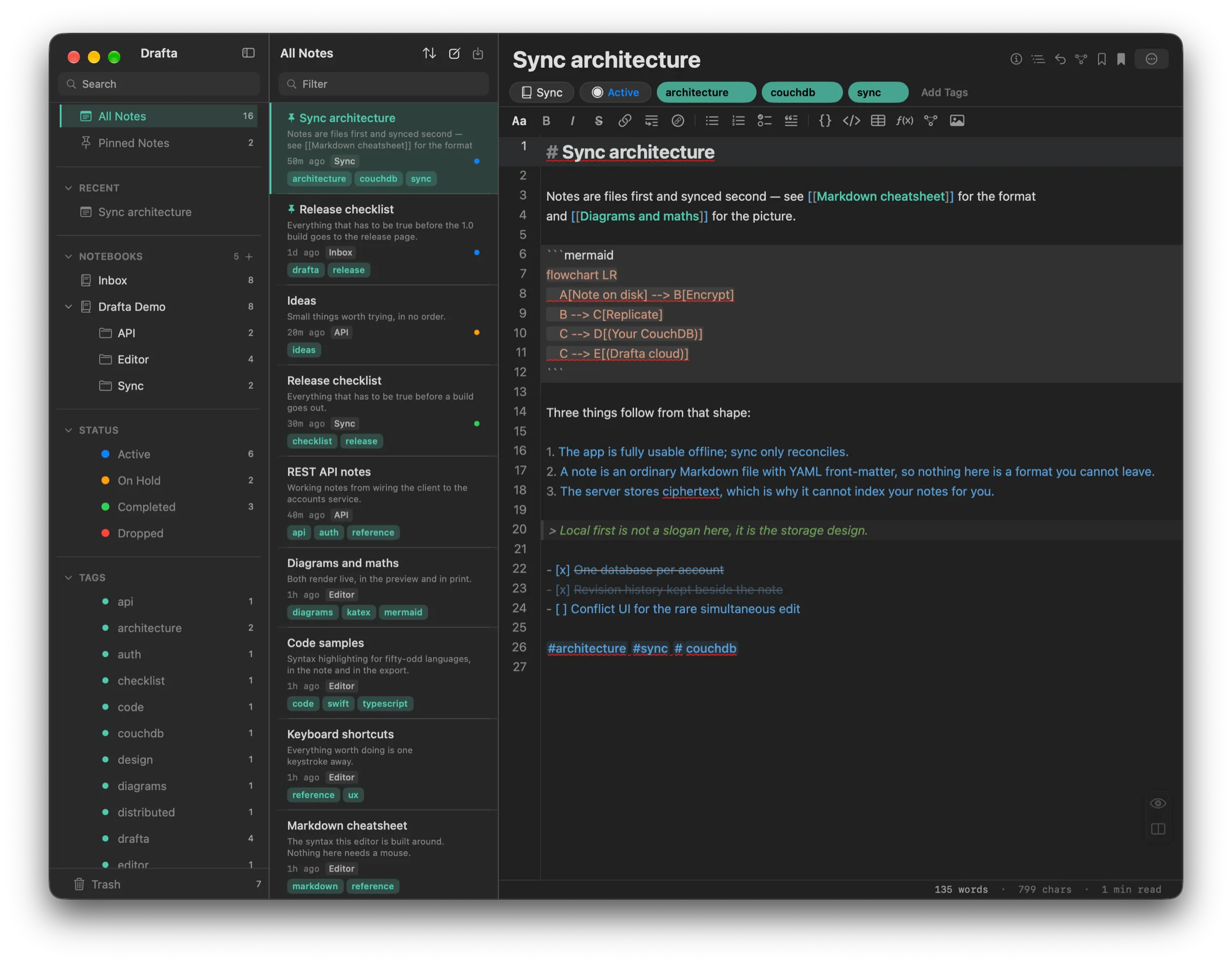
Editor mode: Markdown with line numbers, a highlighted mermaid block, a list, and tasks.
Above the text is a formatting toolbar: bold, italic, strikethrough, link, lists, tasks, code, table, formula, diagram, and image. Below the text is a status bar with a word count, character count, and reading time.
Three view modes
Each note has three modes:
- Editor — only the source Markdown.
- Preview — the rendered note.
- Split — source on the left, preview on the right, synchronized scrolling.
The modes are switched with buttons in the bottom-right corner of the editor. There is no separate keyboard shortcut for them. The default mode is set in the settings.
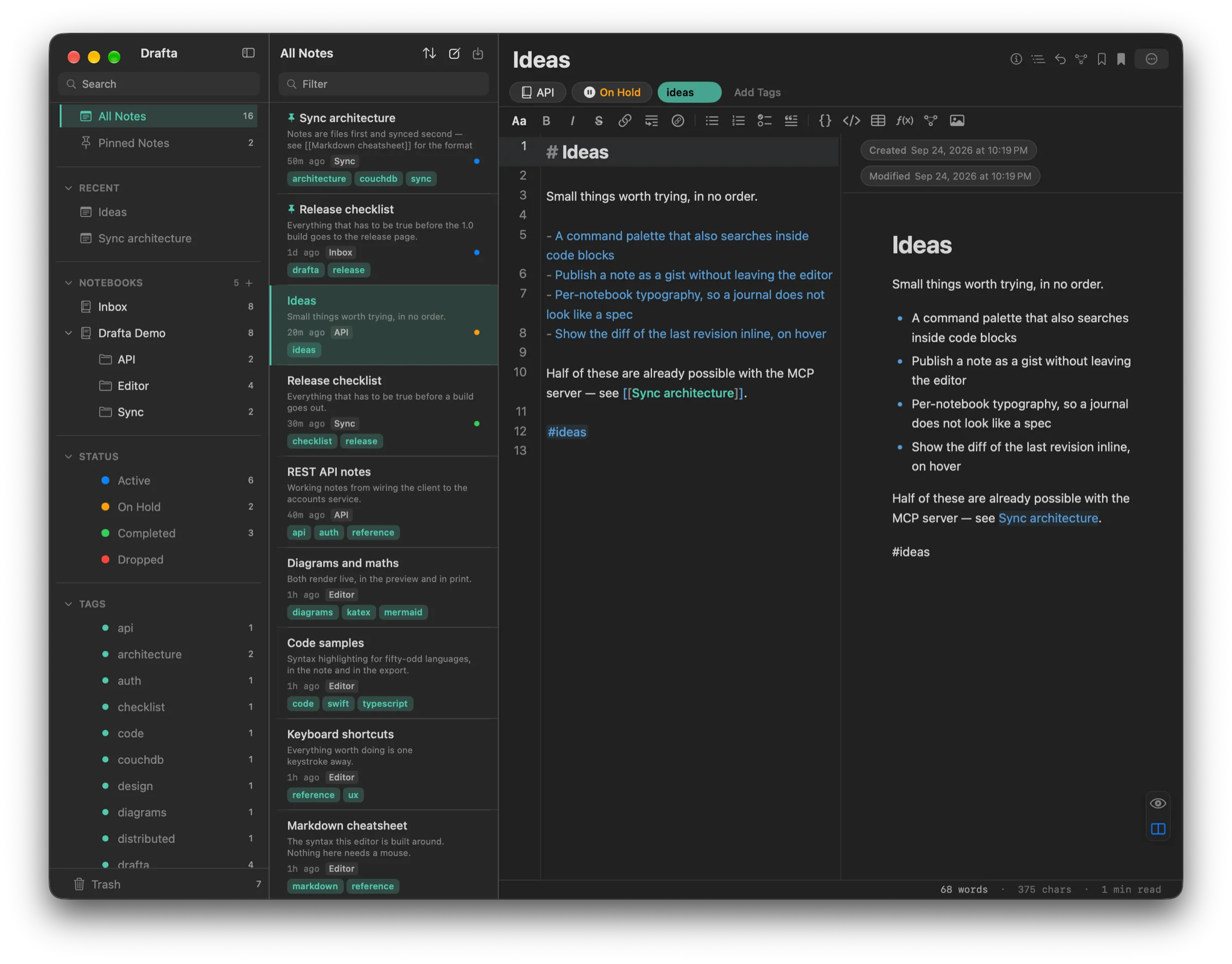
Split: text on the left, result on the right. The wiki link in the preview already works as a link.
Live preview: Mermaid, KaTeX, tables
The preview renders what plain Markdown shows as text:
- Mermaid diagrams — flowchart, state, sequence, class, ER, and others;
- KaTeX formulas — inline
$…$and block$$…$$; - tables, footnotes, wiki links
[[Заголовок]]; - task checkboxes that can be checked with a click right in the preview.
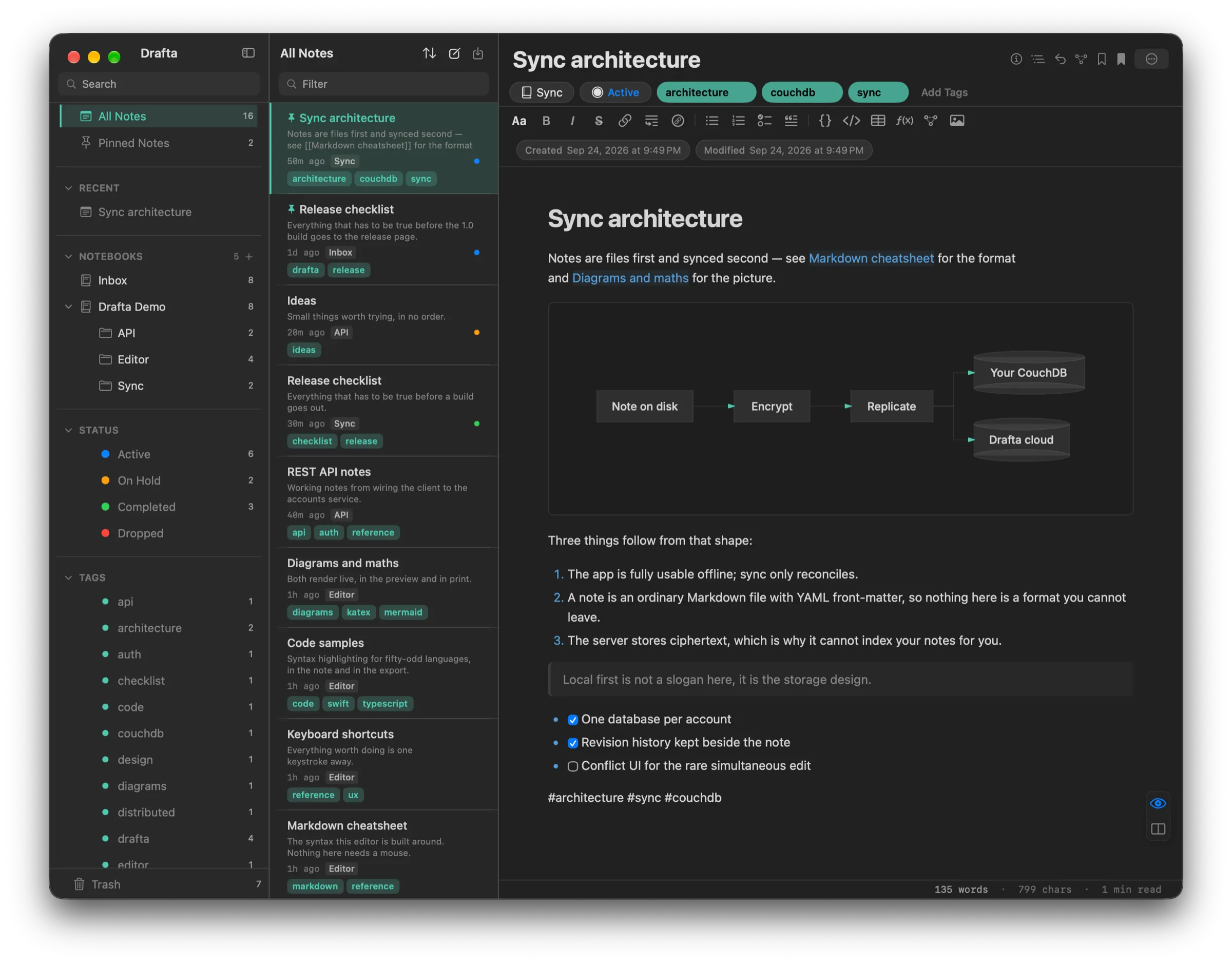
The mermaid block from the source has turned into the “Note on disk → Encrypt → Replicate” diagram.
Code blocks in the preview get line numbers, a language label, and a copy button. Tables are drawn as a grid. Diagrams survive export to PDF and DOCX — they go there as images.
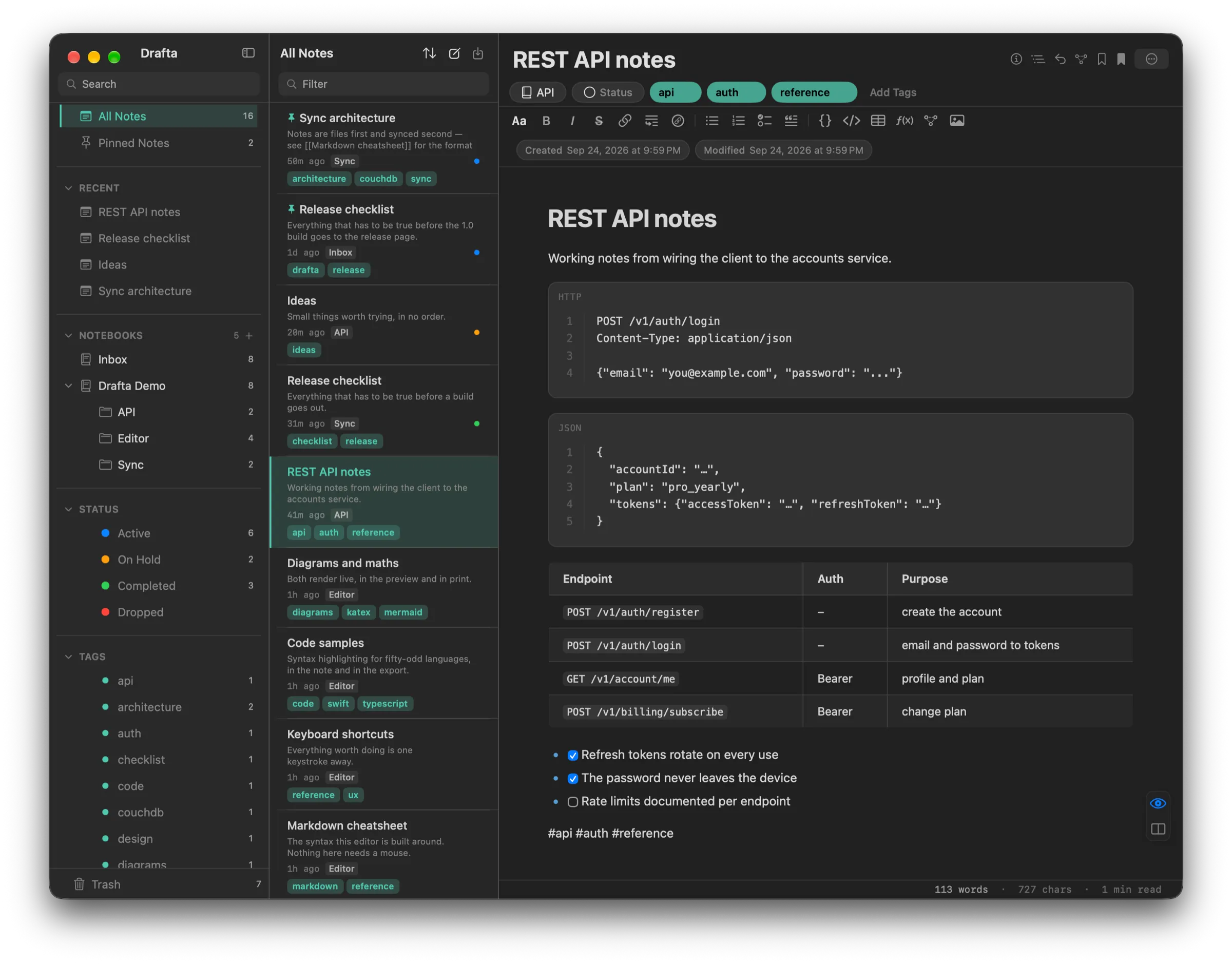
Code with a language label and line numbers, with a table below it — all from plain Markdown.
Callouts
For a single line that can’t be missed, there are callouts in the GitHub format. Five types: NOTE, TIP, IMPORTANT, WARNING, CAUTION. In the preview, each is drawn as a colored banner; in the editor, the background is highlighted.
Table of contents and statistics
A long note is convenient to read with a table of contents. The Contents panel collects headings and takes you to the right one on click. You can enable showing it right away in the settings.
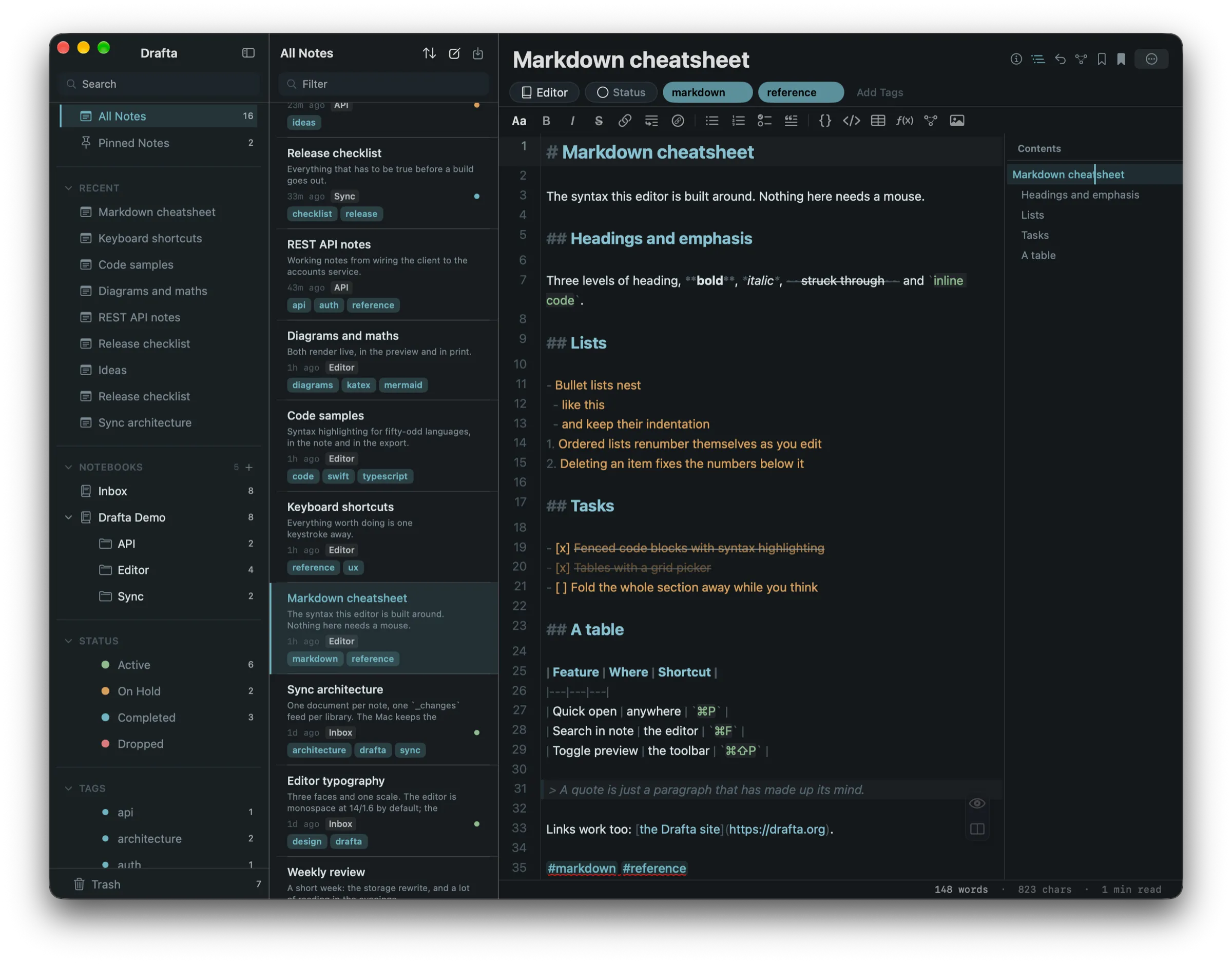
On the right is the note’s table of contents: five headings, the current one highlighted.
The statistics button in the note header shows the number of words, characters, paragraphs, reading time, tags, and creation and modification dates.
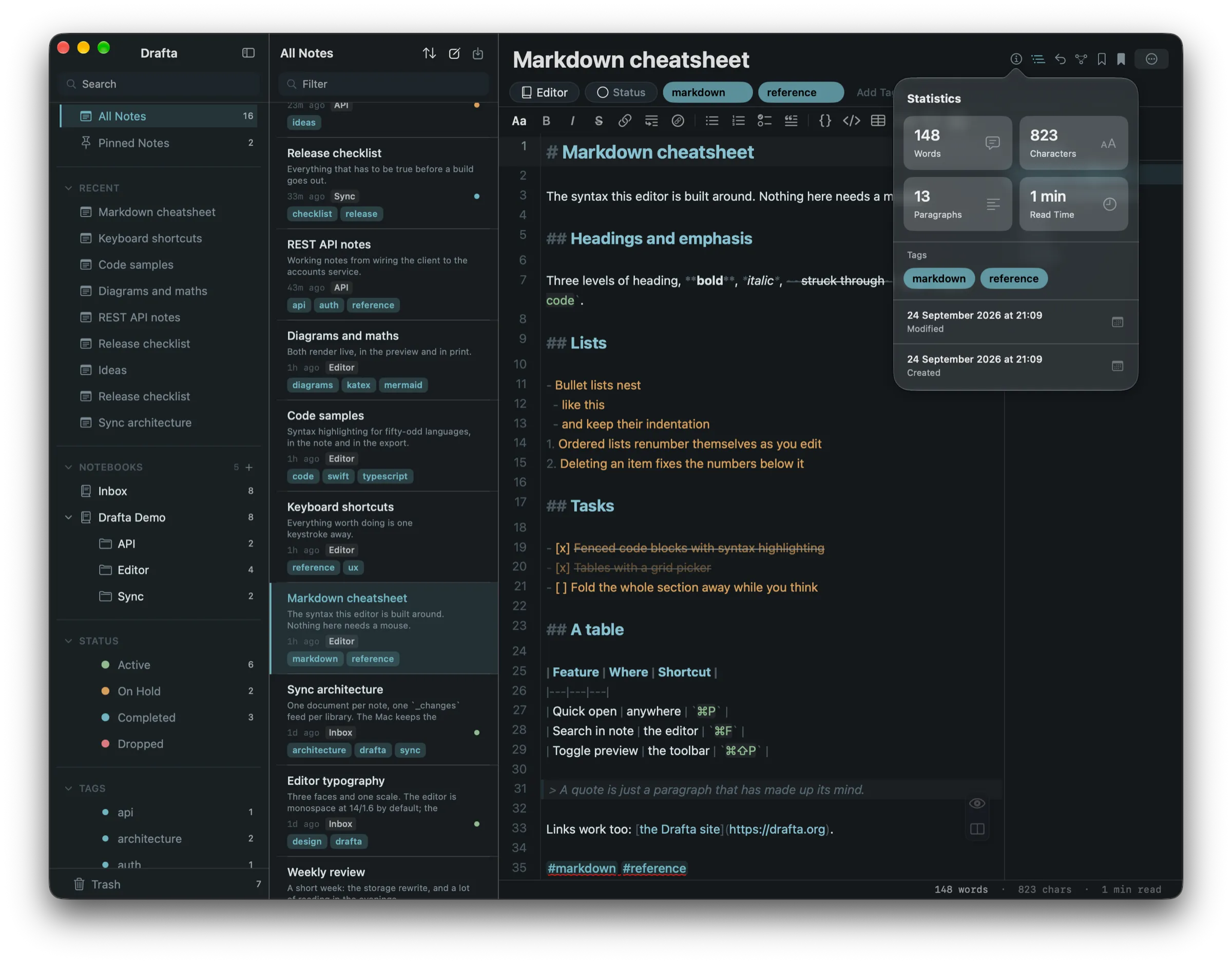
Statistics for one note: 148 words, 823 characters, 13 paragraphs.
Editor settings
The Editor section in the settings is responsible for the appearance and behavior of the text:
- line numbers, wrapping long lines, highlighting the active line, scrolling past the end of the text;
- spell checking and autocorrecting typos;
- autosave delay;
- Vim mode.
Font, size, line spacing, and tab width live in typography presets — they are covered in a separate article about themes.
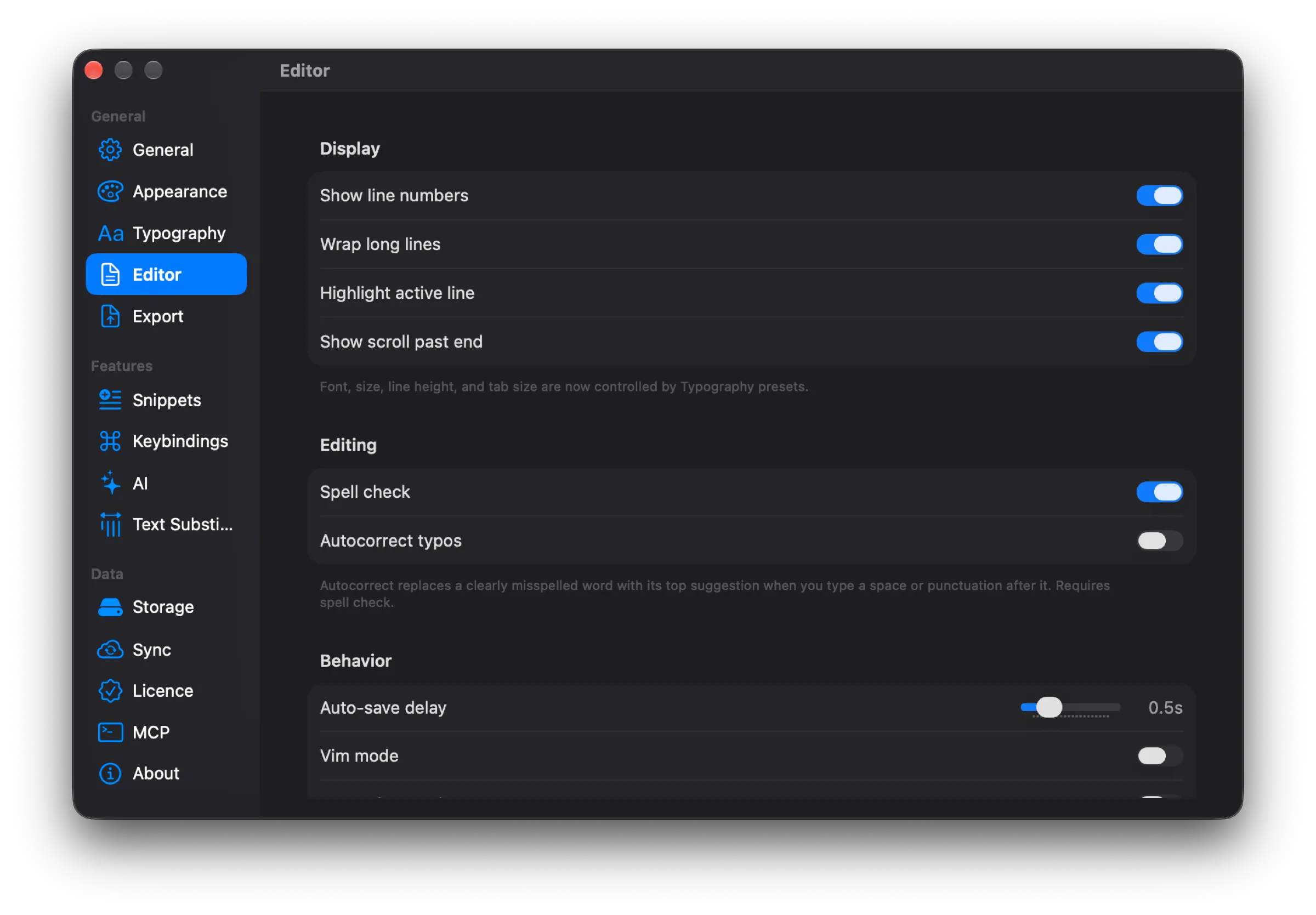
The Editor section: display, editing, and behavior, including Vim mode.
In addition, the editor has line bookmarks, a minimap, and a focus mode. The next article is devoted to bookmarks and links between notes.